
Character and Vehicle Tokens
A linked token represents a character or vehicle from your RPG Sessions game. Its name, visibility, stats, sheet, and other actor details stay connected to the game table, so you don’t need to update the map separately when something changes.
Place an Actor from the Game
Section titled “Place an Actor from the Game”Open Assets and select Your Content. Characters and vehicles already in the game appear above your uploaded assets, grouped into:
- Player Characters
- Player Vehicles
- NPCs
- NPC Vehicles
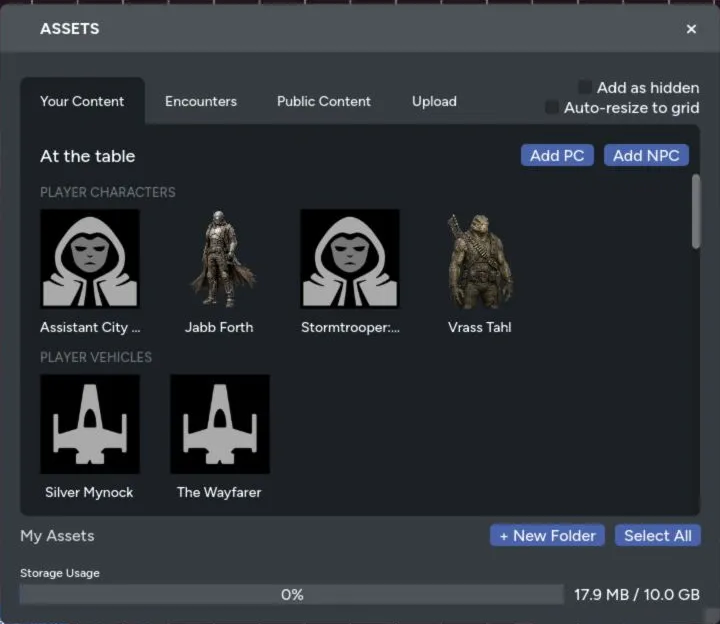
Select an actor to place it on the current map page. The token uses the actor’s image when one is available and starts with its character or vehicle link already set.
Add an Actor to the Game
Section titled “Add an Actor to the Game”If an actor isn’t listed in Your Content:
- Return to the RPG Sessions game table.
- Add the character or vehicle to the game.
- Return to Map Editor and select Assets > Your Content.
- Select the actor to place its token.
Only actors already in the game appear in Maps. Placing one creates a linked map token without adding another copy to the game table.
Token Stats
Section titled “Token Stats”Character tokens can show:
- Current wounds and wound threshold
- Current strain and strain threshold
- Character name
- Minion group count
Vehicle tokens can show:
- Current hull trauma and threshold
- Current system strain and threshold
- Vehicle name
- Crew portraits when crew assignments are available
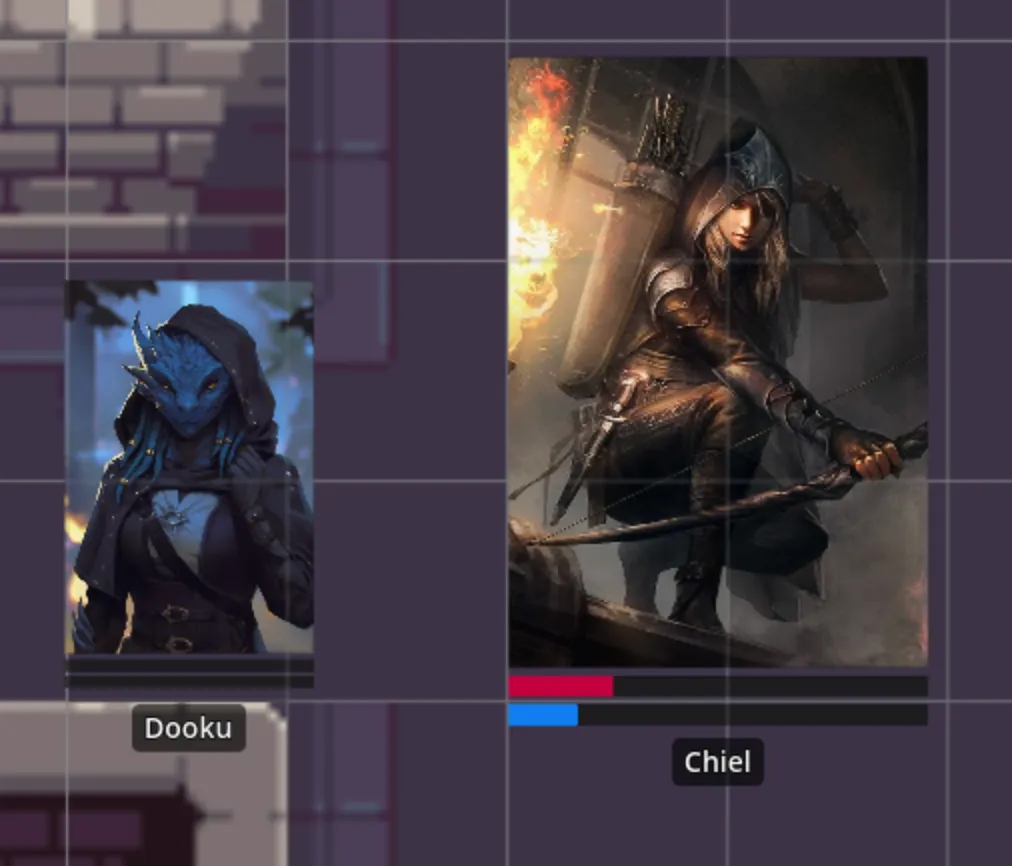
These values update when someone changes the linked sheet through Maps, the game table, or the Discord bot.
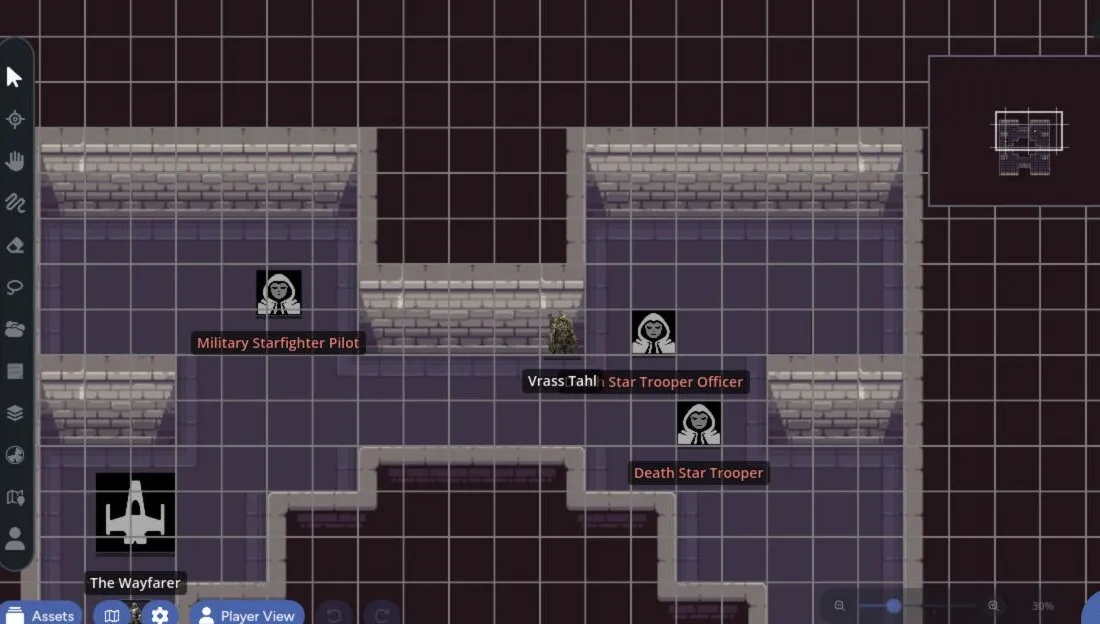
Minion Groups
Section titled “Minion Groups”A single token can represent a group of minions. The label shows the remaining count in the form 3/5, and the wound bar scales to the group’s full capacity.
A minion is defeated when wounds exceed its individual wound threshold. For a five-minion group with a threshold of 5:
| Wounds | Minions Remaining |
|---|---|
| 0 to 5 | 5 |
| 6 to 10 | 4 |
| 11 to 15 | 3 |
| 16 to 20 | 2 |
| 21 to 25 | 1 |
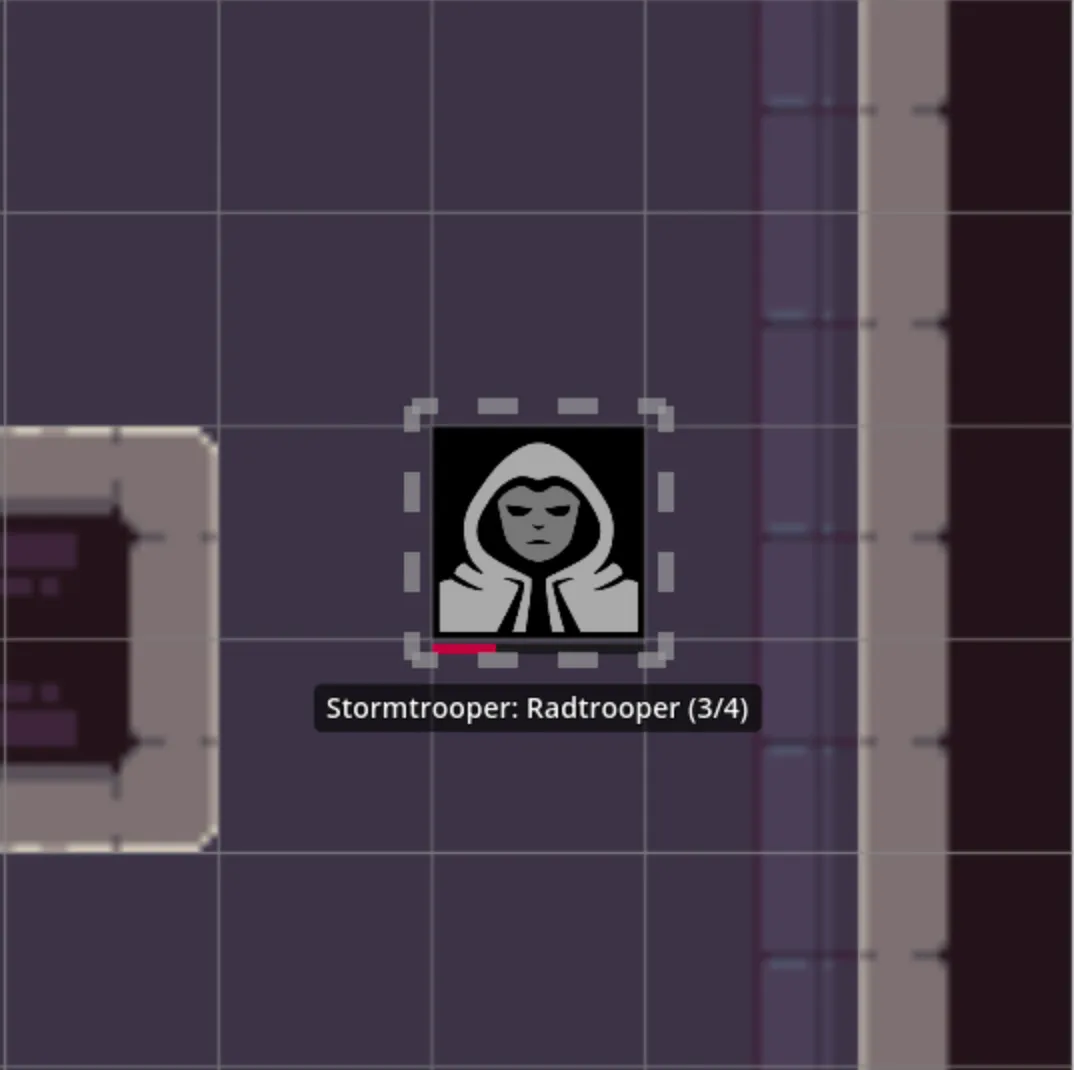
If defeated-token greyscale is enabled in Settings, the token image also changes as the group is eliminated.
Visibility Levels
Section titled “Visibility Levels”The game table’s actor visibility controls what players can learn from a linked token.
| Visibility | Token | Name | Stats and Sheet |
|---|---|---|---|
| Hidden | Shown | ????? | Hidden |
| Visible | Shown | ????? | Hidden |
| Known | Shown | Shown | Hidden |
| Full | Shown | Shown | Shown |
The GM always sees the real actor and can edit its visibility. A GM using Player Preview sees the player-facing result instead.
Map visibility still applies on top of actor visibility. A token can also be hidden by:
- The asset’s hidden toggle
- A GM-only layer
- Fog of war
- Lighting concealment
Movement Permissions
Section titled “Movement Permissions”GMs can enable Restrict Token Movement to Owners in Settings. When it is on, players can move their own character tokens but can’t move another player’s token.
The setting doesn’t limit the GM. Asset locking, layer locking, and wall collision can still prevent movement for other reasons.
Open the Quick Sheet
Section titled “Open the Quick Sheet”Select a linked character or vehicle token to open its quick sheet. The selected-asset action bar also has a Sheet button, so you can reopen a sheet after closing it without selecting another token.
Flip a Token
Section titled “Flip a Token”Shift+Fflips the current selection horizontally.Shift+Vflips the current selection vertically.
With several assets selected, Maps mirrors the full group around its center and flips each image. This works well for formations and repeated map tiles.