Skip to content

Grid System

Grids overlay your map with a repeating pattern of cells that tokens and assets can snap to. Whether you’re running tactical combat on a square battlemap or navigating hex-based overworld terrain, the grid keeps everything aligned and makes distance easy to judge at a glance.

Grid settings are per-page, so each page in your map can have its own grid type, cell size, and color, or no grid at all.

The grid system supports three grid types, plus the option to disable the grid entirely. You can switch between them at any time from the settings panel.

A standard rectangular grid. Cells are equal-width squares, and movement follows the four cardinal directions (up, down, left, right). This is the most common choice for tactical battlemaps in systems like D&D or Pathfinder.

Square grid

A hexagonal grid with the pointed end of each hex facing up. This is the default grid type. Hex grids offer six directions of movement instead of four, which can feel more natural for overland travel and exploration.

Pointy hexagons

A hexagonal grid rotated so the flat edge faces up. Functionally identical to the pointy-top hex grid, just oriented differently. Choose whichever orientation matches your map art or game system’s convention.

Flat hexagons

Disables the grid entirely. Assets can be positioned freely with no snapping, and grid-related tools are hidden. Use this for theater-of-the-mind maps, artistic overworld views, or any situation where precise positioning isn’t needed.

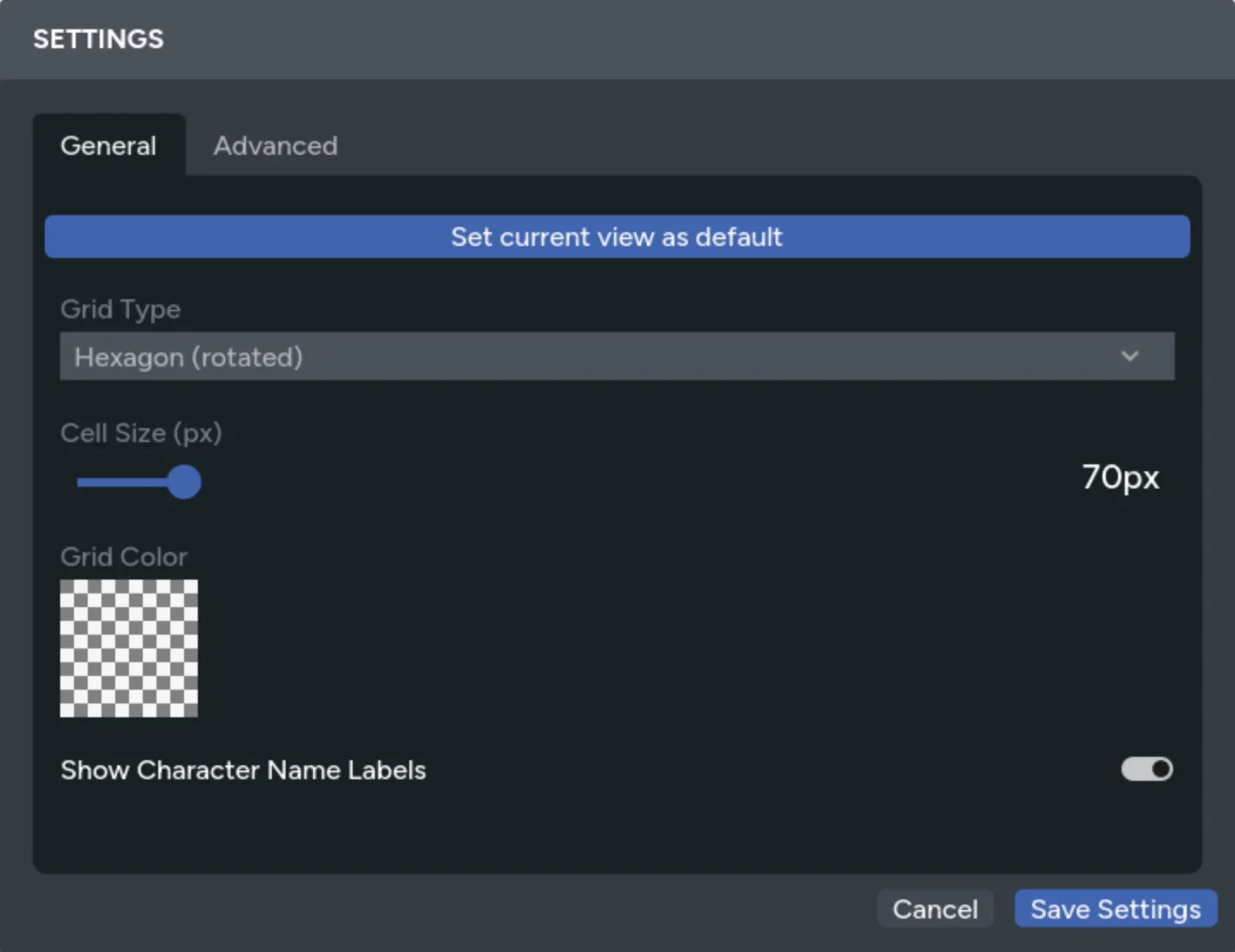
Open the Settings panel to adjust grid settings for the current page. Changes are saved per-page and sync to all connected players in real time.

Settings panel

Select the grid type from the dropdown: Hexagon, Hexagon (rotated), Square, or None. Changing the grid type immediately updates the overlay and snapping behavior for everyone at the table.

The cell size slider controls how large each grid cell is. Smaller values create a finer grid with more cells; larger values create a coarser grid with fewer, bigger cells. Adjust this to match the scale of your map image.

When you’re working with tiled map art, set the cell size to match your tile dimensions so that each tile fits exactly into one cell.

Click the color picker to choose a custom grid line color. You can also adjust the opacity using the alpha channel. This is useful for keeping grid lines visible without obscuring your map art. The default is a subtle, semi-transparent dark color that works well on most maps.

When the grid is enabled, assets snap to grid cells in two ways: while dragging and with arrow keys.

Hold Shift while dragging an asset to snap it to the nearest grid cell. The asset’s center aligns to the center of the closest cell, keeping everything neatly positioned on the grid.

This works with single assets and multi-selections alike. If you drag without holding Shift, the asset moves freely without snapping, even when the grid is visible.

Assets that span multiple cells are handled intelligently. A large token that covers a 2x2 area snaps so that its edges align to cell boundaries, while a token that covers a single cell snaps to the cell center.

Press the arrow keys to move selected assets exactly one grid cell in that direction. This gives you precise, cell-by-cell control that’s especially useful for moving tokens during combat.

  • Arrow keys: Move one cell in the pressed direction
  • Shift + Arrow keys: Move five cells at once for faster repositioning

On hex grids, the arrow keys map to the nearest hex direction, so pressing left or right moves along the hex row and pressing up or down moves diagonally between rows in the way you’d expect.

Hold Shift while resizing an asset with the Resize tool to snap its size to grid increments. Instead of scaling freely, the asset grows or shrinks so that its edges align to grid cell boundaries.

This is useful when sizing tokens or props to cover an exact number of grid cells. A creature that needs to fill a 2x2 area, for example, can be resized to fit those cells precisely by holding Shift as you drag the resize handle.

The snapping uses the smaller of the grid cell’s width and height to calculate increments, which keeps things aligned on both axes. Each asset snaps independently when multiple assets are selected and resized together.

The grid must be enabled for this to work. Without a grid, Shift has no effect during resizing.

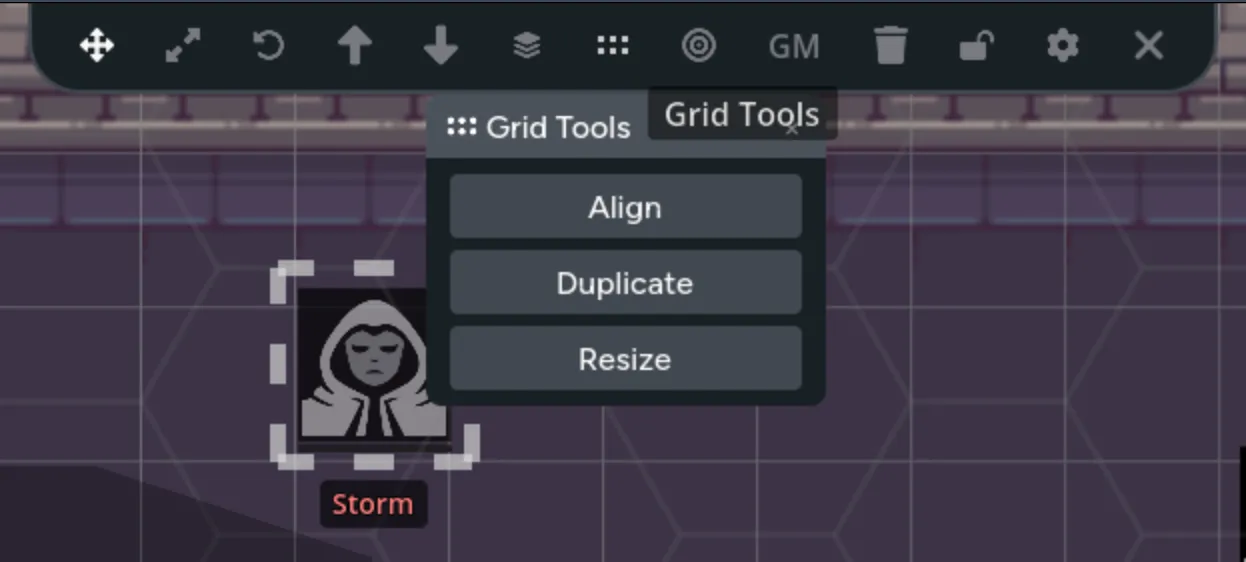
When you have assets selected and the grid is enabled, the Grid Tools panel provides quick actions for aligning and resizing assets to the grid.

Grid Tools

Snaps each selected asset’s center to the nearest grid cell center. Use this to clean up asset positions after free-placing them, or after changing the grid size or type.

When aligning multiple assets at once, the system avoids placing two assets in the same cell. If assets would overlap, they’re spread into nearby cells instead.

Scales each selected asset so it fits neatly within a single grid cell. The asset is resized proportionally (maintaining its aspect ratio) and then snapped to the nearest cell center.

This is useful when you’ve added tokens or props at arbitrary sizes and want them to match the grid scale consistently.

Creates copies of the selected assets in a chosen direction (right, left, down, or up), spaced exactly one grid cell apart. You choose the direction and how many copies to create.

This is invaluable for building tiled maps. Select a map tile, duplicate it 10 times to the right, and you’ve got a row. Select the row and duplicate it downward to fill out a full grid of tiles.

When enabled, every new asset added to the map is automatically resized to fit within a single grid cell. You can toggle this setting from the asset manager.

This saves time when building maps tile by tile, since you don’t need to manually resize each piece after placing it. Assets are scaled proportionally to fit the current cell size, maintaining their aspect ratio.

Auto-resize only applies to newly placed assets. Existing assets on the map aren’t affected when you toggle this setting.


The grid system is designed to work well with tiled map art. Individual image tiles that snap together to form a larger map. Here’s a typical workflow:

  1. Set your cell size to match the dimensions of your map tiles
  2. Enable auto-resize to grid so tiles fit cells automatically as you place them
  3. Place your first tile from the asset manager
  4. Use Duplicate in Direction to quickly fill out rows and columns
  5. Use Shift+F and Shift+V to flip tiles horizontally or vertically for variety

Since each tile snaps perfectly to the grid, you can build large, complex maps quickly without fiddly manual alignment.

Demo showing how flipping tiles can be very useful when building with tiles

  • Match cell size to your content: If you’re using pre-made battlemaps with a built-in grid, adjust the cell size until the overlay lines up with the grid in the image. This way, token snapping matches the map’s grid.
  • Use hex grids for overland maps: Hex grids handle diagonal movement more naturally than square grids, making them a good fit for exploration and travel maps.
  • Adjust opacity for readability: If the grid is hard to see, increase the color’s opacity. If it’s too distracting, lower it. You can also change the color to contrast with your map’s palette.
  • Different grids for different pages: Since grid settings are per-page, you can use a square grid for your dungeon maps and a hex grid for the overworld, all within the same session.
  • Lock your background layer: When building tiled maps, lock the layer holding your tiles once you’re done arranging them. This prevents accidental moves while you place tokens and props on layers above.