Initiative Tracker
When combat starts, you need to know whose turn it is. The initiative tracker puts that information right on the map as a visual bar at the bottom of the screen, showing the full turn order, the current round, and whose slot is active. It stays in sync with your game table, so changes from the bot or the web app show up on the map automatically, and changes from the map flow back to the table.
If you’re setting up initiative for the first time, you’ll want to start from
your game table using the bot’s /initiative commands
or the web interface. Once slots exist, the tracker appears on the map for
everyone in the session.
The Initiative Bar
Section titled “The Initiative Bar”The initiative bar sits at the bottom center of the screen. From left to right, it shows:
- Round counter displaying the current round number
- Slot strip showing each initiative slot in order
- Previous and Next buttons to step through turns
- Settings button (gear icon) to access tracker options

The bar fades to a lower opacity when you’re not hovering over it, keeping it out of the way until you need it. Hover over it to bring it back to full visibility.
Reading the Slots
Section titled “Reading the Slots”Each slot in the strip represents one turn in the initiative order. The shape tells you what type of slot it is:
- Square corners for PC slots
- Rounded corners for NPC slots
The active slot is highlighted and inactive slots are dimmed. Slots that have already passed this round have a green dot in the top-right corner.
Assigning Characters to Slots
Section titled “Assigning Characters to Slots”Slot assignment is entirely optional. In a typical game, you don’t assign specific characters to initiative slots. The slot type (PC or NPC) tells you whose turn it is, and your group decides at the table who acts in each slot. That’s the normal flow, and the tracker supports it without any extra setup.
Where slot assignment becomes useful is in larger battles or encounters that stretch across multiple sessions. When you have eight NPCs and five PCs on the map, remembering who already went this round gets harder. Assigning characters to slots lets the tracker do that bookkeeping for you, and it unlocks features like camera auto-focus and the active token highlight that tie the bar directly to tokens on the map.
If your table doesn’t need that, skip this section and just use the bar to track whose turn type is up.
To assign a character, click on any slot to open the character picker. The picker shows eligible characters filtered by slot type: PCs for PC slots, NPCs for NPC slots. Characters who have already been assigned to a slot this round are filtered out so you don’t accidentally double-book someone.

If a character is currently assigned to the slot, the picker highlights them and shows an Unassign option at the top.
When a character is assigned, their portrait appears inside the slot on the bar. Unassigned slots show a “PC” or “NPC” text label instead.
Ghost Portraits
Section titled “Ghost Portraits”If you’re using slot assignments, you’ll notice that when a new round begins, slots carry over whoever was assigned to them last round, but they aren’t confirmed yet. You’ll see a small, faded portrait in the corner of the slot instead of a full-size one. This is a reminder of who was there last round. Once you assign a character to the slot (even the same one), the portrait fills in fully. If you skip assigning a character, the slot will be unassigned after its turn is over.

Slot Management from the Picker
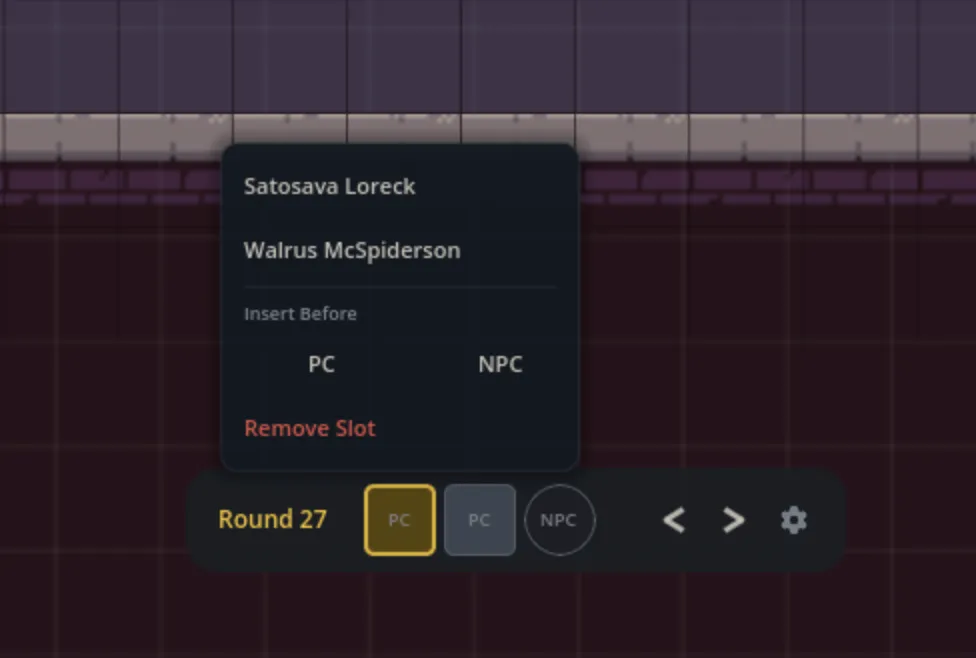
Section titled “Slot Management from the Picker”When you click a slot to open the picker, you’ll also see options to Insert Before (with separate PC and NPC buttons) and Remove Slot at the bottom. These let you adjust the turn order on the fly without going through the settings menu.
Advancing Turns
Section titled “Advancing Turns”Use the Next (right arrow) and Previous (left arrow) buttons on the bar to step through the initiative order. When you advance past the last slot in a round, the round counter increments and the tracker wraps back to the first slot.
Settings Menu
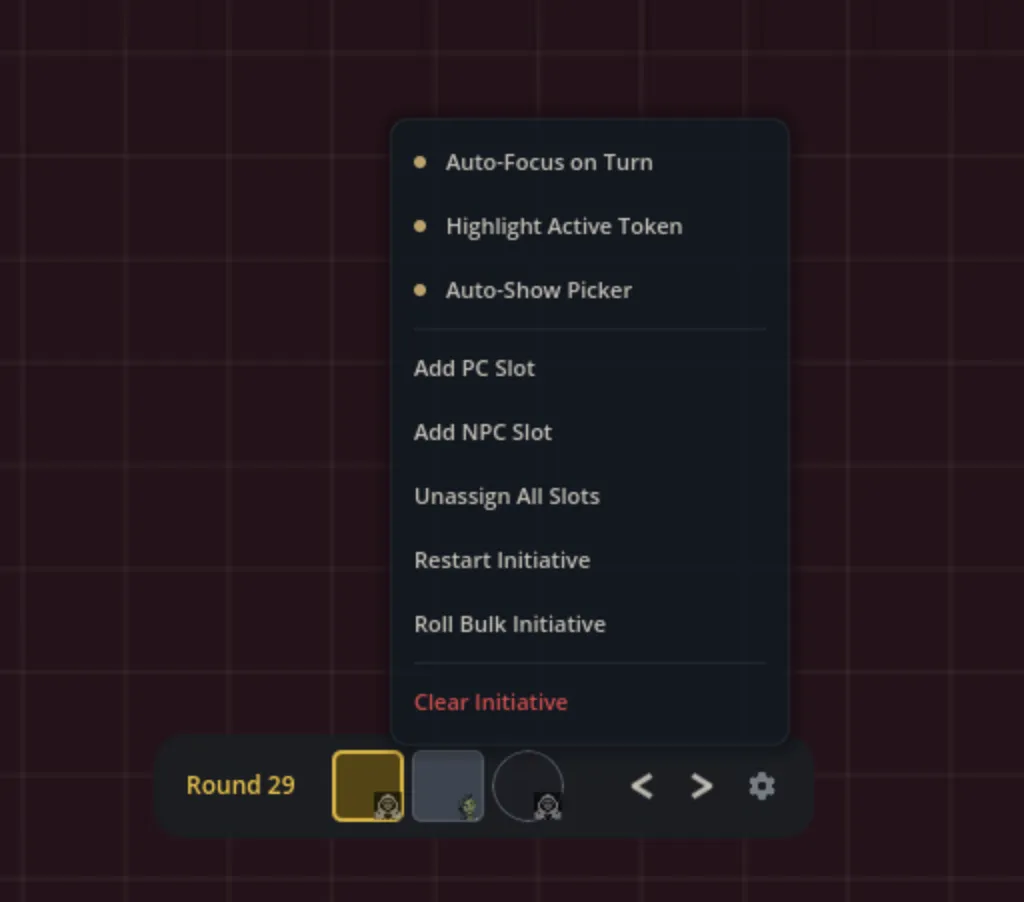
Section titled “Settings Menu”Click the gear icon on the right side of the bar to open the settings menu. This menu has both toggle settings and action buttons.
Toggle Settings
Section titled “Toggle Settings”- Auto-Focus on Turn: If you’re using slot assignments, the camera smoothly pans to center on the assigned character’s token when the active slot changes. Useful for large maps where combat is spread across multiple areas.

- Highlight Active Token: If you’re using slot assignments, this draws a pulsing golden glow around the assigned character’s token on the map, making it easy to spot whose turn it is at a glance.
- Auto-Show Picker: Automatically opens the character picker when the turn advances to an unassigned or unconfirmed slot. Saves you a click each turn if you’re assigning characters as you go.

Actions
Section titled “Actions”- Add PC Slot / Add NPC Slot: Append a new empty slot to the end of the initiative order.
- Unassign All Slots: Clear all character assignments without removing the slots themselves. The slot order stays intact.
- Restart Initiative: Reset back to round 1, slot 1 without changing the slot layout.
- Roll Bulk Initiative (GM only): Opens the bulk initiative roller, which lets you roll initiative for multiple characters at once rather than one at a time.
- Clear Initiative: Removes all slots entirely, wiping the initiative order. This asks for confirmation before proceeding since it can’t be undone.
Active Token Highlight
Section titled “Active Token Highlight”If you’re using slot assignments and have Highlight Active Token turned on in the settings menu, the map draws a layered golden glow around the token belonging to the active slot’s character. The glow pulses gently so it catches your eye without being distracting. It only appears when the slot has a confirmed character assigned to it.

Camera Auto-Focus
Section titled “Camera Auto-Focus”If you’re using slot assignments and have Auto-Focus on Turn enabled, the camera pans smoothly to center on the active character’s token each time the turn advances. The pan takes about half a second, so it feels responsive without being jarring. This is especially helpful on maps where combat is happening in multiple areas and you’d otherwise need to scroll around to find the next character.
Showing and Hiding the Tracker
Section titled “Showing and Hiding the Tracker”The initiative tracker is a per-user setting. Each person at the table can choose whether to display it or not.
To toggle the tracker:
- Open the Settings panel (gear icon in the bottom-left of the screen)
- Under the General tab, check or uncheck Initiative Tracker
When you hide the tracker, it slides off the bottom of the screen. Showing it again slides it back up. This doesn’t affect anyone else’s view.
- Keep it simple. The tracker works fine without assigning characters to slots. If your group just needs to know “it’s a PC turn” or “it’s an NPC turn,” that’s all you need.
- Assign as you go. If you are using assignments, turn on Auto-Show Picker so the character picker opens automatically each turn. This keeps things moving without extra clicks.
- Use the highlight for large groups. When you have a dozen tokens on the map, the golden glow makes it obvious whose turn it is without scanning the bar.
- Auto-focus for big maps. If combat spans multiple rooms or areas, camera auto-focus keeps everyone oriented without manual scrolling.
- Manage slots from the picker. Rather than going to the gear menu, click a slot and use the Insert Before or Remove Slot options to adjust the order mid-combat.