
Settings and Performance
Map settings control how the current game looks and behaves on your device. Shared map settings, such as the grid and dynamic lighting, affect the table. Display and performance settings help you tune your own view.
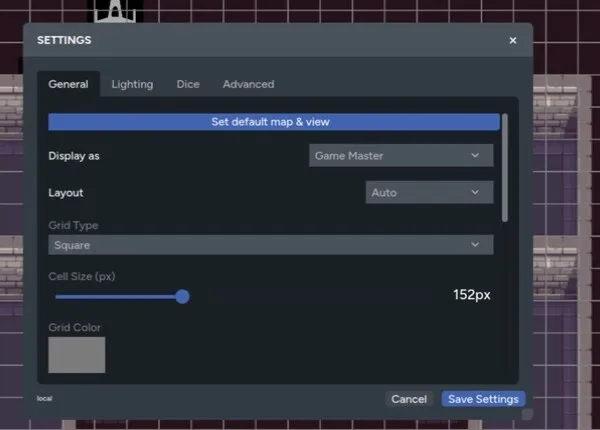
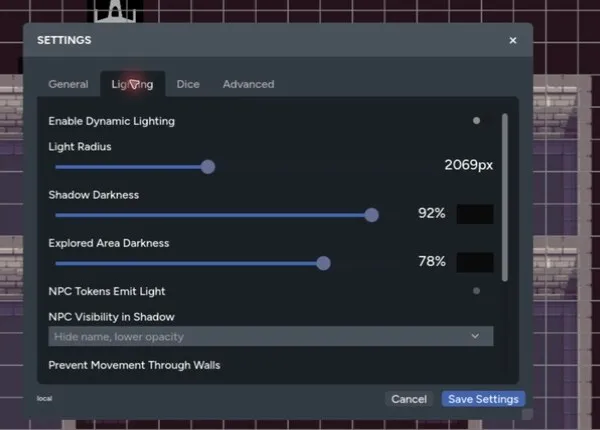
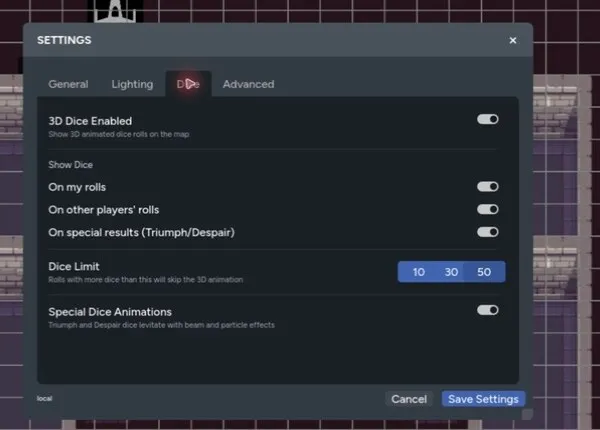
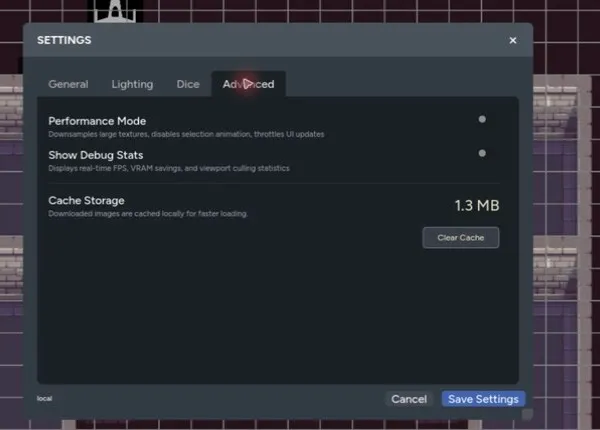
Open Settings from the map controls. The panel is split into General, Lighting, Dice, and Advanced tabs.
| General | Lighting |
|---|---|
 |  |
| Dice | Advanced |
 |  |
General Settings
Section titled “General Settings”The General tab includes:
- Set default map & view to save the starting page and camera position
- Display as for pings and other table activity
- Layout: Auto, Desktop, or Mobile
- Grid Type, Cell Size (px), and Grid Color
- Background color
- Background Image selection and scale
- Show Character Name Labels
- Quick Character/Vehicle Sheets
- Mini Map
- Zoom Indicator
- Initiative Tracker
- Greyscale Defeated Tokens
- Restrict Token Movement to Owners
Choose Auto unless you need to force a layout. Mobile keeps the map canvas available while moving its main tools into a touch-friendly bottom bar.
Lighting Settings
Section titled “Lighting Settings”The Lighting tab controls dynamic lighting, token light, exploration, shadows, and wall collision. These settings change what the table can see, so test them with Player Preview before a session.
See Lighting and Walls for the full setup.
Dice Settings
Section titled “Dice Settings”Turn on 3D Dice Enabled to animate rolls on the map. You can choose whether animations appear for:
- Your own rolls
- Other players’ rolls
- Rolls containing a Triumph or Despair
The dice limit sets the largest pool that will animate. Larger rolls still resolve, but skip the 3D animation. Lower the limit if dice animations cause a frame-rate drop.
Special Dice Animations adds extra effects to qualifying results. Performance Mode temporarily disables 3D dice without changing your saved dice preference.
Performance Mode
Section titled “Performance Mode”Performance Mode lowers the cost of rendering a busy map. It:
- Downsamples large textures
- Disables selection animations
- Reduces the rate of some interface updates
- Disables 3D dice while active
Turn it on when a large background, many animated assets, or dynamic lighting makes the map feel slow. You can turn it off again without rebuilding the page.
Debug Stats
Section titled “Debug Stats”Enable Show Debug Stats to display the current frame rate, memory use, viewport culling, and estimated texture savings. This is useful when you’re comparing settings or reporting a performance problem.
Debug stats only describe your current device and map view. Other players may get different results from the same page.
Clear the Asset Cache
Section titled “Clear the Asset Cache”Maps caches downloaded images so revisiting a page is faster. If an updated image still shows its old version, open the Advanced tab and select Clear Cache.
The asset is downloaded again the next time the map needs it. Clearing the cache doesn’t delete anything from the game or your Asset Library.
Quick Troubleshooting
Section titled “Quick Troubleshooting”- If the map is slow, turn on Performance Mode and lower the 3D dice limit.
- If lighting is the main cost, disable shadows or reduce other lighting effects.
- If an image looks out of date, clear the asset cache.
- If controls feel cramped, switch between Auto, Desktop, and Mobile layouts.
- If players can move the wrong tokens, enable owner-restricted movement and check the actor permissions.
For hidden content and player testing, see GM Controls.